Office 365 in 2015 – What I’m Looking Forward to!

Office 365 Roadmap

As an evergreen service, Office 365 is always expanding and updating it’s service, providing users with new features and admins with more granular controls and functionality. Here is a list of updates I am particularly looking forward to this year.

  • MDM for Office 365 – at the moment this is a weak spot in the security of Office 365. Using ActiveSync Quarantine, you can control which devices are able to connect to corporate email, however you currently have no controls over which devices can connect to OneDrive for Business, SharePoint and Office apps. This is still in development but should be rolled out in the first half of 2015. http://blogs.office.com/2014/10/28/introducing-built-mobile-device-management-office-365/
  • Drive Shipping and Network Based Data Import for Office 365 – this will allow for large scale import of PST data into Exchange Online Archive mailboxes centralised technologies such as drive shipping or network imports. This is a big feature request for customers, as the current method is to either import PSTs into Outlook and let the client sync (not ideal), or to use third party tools. This feature has no rollout date yet.
  • Compliance Center for Office 365 – this will provide a single pane of glass (SPOG) approach to managing compliance across all Office 365 services. You will be able to configure central policies that will apply across Exchange and SharePoint data and control data retention. This is available in preview as of Jan 2015.
  • MAPI over HTTP for Exchange Online – this is the long term replacement for RPC over HTTP (aka Outlook Anywhere) and simplifies and improves Outlook connectivity. This is being rolled out at the moment and will be complete at the end of Q1 2015.
  • Yammer integration with Office 365 – admittedly the rollout of this service is almost complete (due to be completed by the end of March) but if you don’t have it yet, then you can look forward to being able to seamlessly login to your existing or new Yammer network with your Office 365 credentials.

These are just a handful of the updates coming this year. As you can see, Microsoft are working hard to make this a service which provides real benefit and control to its customers. This is the benefit of using an evergreen service; it can constantly evolve and respond to customer feedback quickly and easily.

Remember to check the roadmap at http://roadmap.office.com to find out about features being worked on and rolled out!

Let me know in the comments which features you are looking forward to most 🙂

Office 365 Hybrid Mailbox Move stuck in ‘Removing’ state

This is an issue I’ve come across more than once now. An attempted mailbox move from Exchange 2010/2013 to Office 365 has failed and you want to remove the migration batch and try again. You try to remove the batch, but it just gets stuck in the ‘Removing’ state for an extended period of time. We need to give this request the finger and start from scratch, but how?

First things first, lets check the status of the move using Powershell, as Powershell will never lie! Login to Exchange Online Powershell, and run:

get-migrationbatch -identity <nameofbatch> | fl

If the status does read as ‘Removing’ and it’s been a long time since you started the removal, then you likely have a corrupted batch. Let’s forcefully remove it. To remove the batch, run:

Remove-migrationbatch -identity <nameofbatch> -force

If you now run the get-migrationbatch command above, you should get an error which states that the batch does not exist. Good news! We now just need to clear out the migration user requests which will still be lingering. To see which user requests exist, run:

Get-MigrationUser

If the only users in here are the users which were associated with your migration batch, then you can run:

Get-MigrationUser | Remove-MigrationUser -Force

to remove all of the migration user requests. However if there are other user requests in here which you do not want to remove, then remove the users individually by running:

Remove-MigrationUser <Identity> -Force

Now if you run the Get-MigrationUser command, you should see that the users who were in the corrupted batch are no longer listed. You can start a new batch once you’ve resolved whatever issue caused the mailbox move to fail and all should be tickety-boo 🙂

In our case we were running mailbox export commands at the same time as mailbox migrations, and we had some timeout issues with the Mailbox Replication Service. The error we received in the migration report was “Relinquishing job because of large delays due to unfavorable server health or budget limitations”. Simple fix, just remove the migration batch once the exports were complete, and start again. What we didn’t bank on would be that the migration batch would become corrupted. To resolve this, we allowed our mailbox exports to complete, and then restarted the Microsoft Exchange Replication Service. We then cleared the corrupted batch using the commands shown above, and started in again. It completed successfully this time.

Enterprise Mobility Suite now available in an Open License programme near you

Enterprise Mobility Suite

As of March 1st, this awesome suite of cloudy goodness is available to small to medium businesses, supplied on Microsoft’s Open License programme. The Enterprise Mobility Suite consists of 3 tools which enables your users to be productive across any platform or device, whilst keeping the data on those devices secure. The suite consists of the following products:

  • Microsoft Azure Active Directory Premium – providing you with granular reporting, self service password reset and multi factor authentication.
  • Microsoft Intune – providing you with class beating Mobile Device Management, including conditional access features and System Center integration.
  • Microsoft Azure Rights Management – lock down your corporate data, whether in the cloud or on premise with Azure RMS.

I have had a play with all three of these products and I must say that there is a lot of very cool stuff in there. By the end of our week of testing, we had all the bells and whistles going, and the level of functionality which we had achieved was fantastic. Device enrolment was easy, MFA worked a treat and my test data felt like it was covered in bubble wrap.

Here are a couple of links about the announcement, and about the suite itself:

Annoucement: http://blogs.technet.com/b/mpn_uk/archive/2015/03/05/the-enterprise-mobility-suite-ems-partner-opportunity.aspx

EMS: http://www.microsoft.com/en-gb/server-cloud/products/enterprise-mobility-suite/default.aspx

Office Online overhaul!

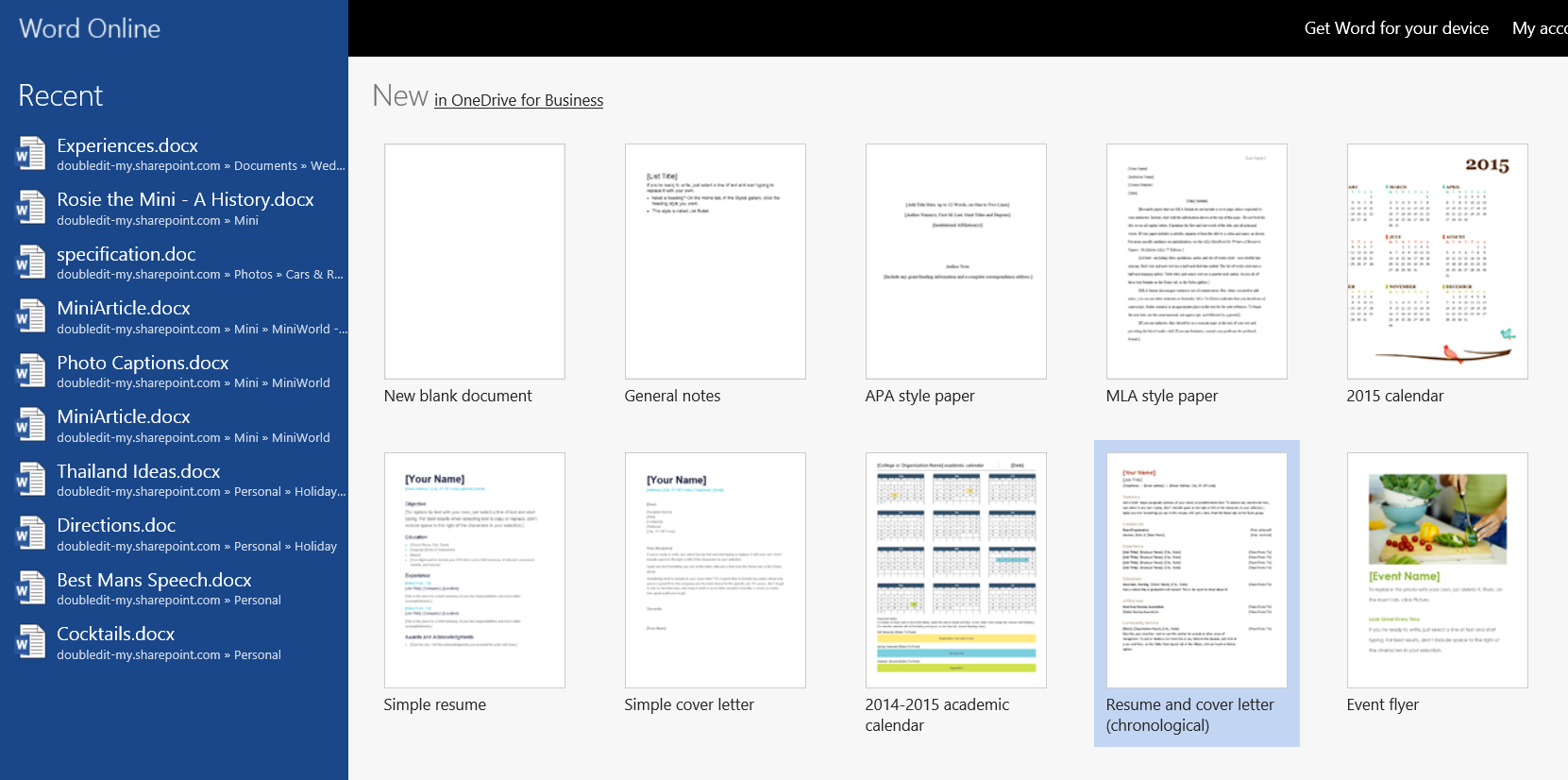
Office Online Recent Files list

I am excited to see that Office Online (formerly known as Office Web Apps) is having a major overhaul at the moment, with new functionality coming out of it’s ears! This is good news for all Office 365 users, making what was a strong but basic editing suite into something which is much more akin to the traditional desktop Office suite experience.

The main new features which the Office team are enjoying bragging rights over are:

  • Enhanced Reading View experience – Edit, Print, Share and Comment functions are now right at your fingertips.
  • Saving and Managing your files – My favourites here are the Save As button, and the Download as PDF options.
  • Add to OneDrive – This is like Save As, but puts an editable copy of a read only file in your OneDrive. Awesome!
  • Recently Used Files list and template availability – Just like in desktop Office 🙂
  • Integrated Help – Shame Clippy hasn’t returned though! I did love having Clippys company.

You can find out more by hitting the Office Blog post on Office Online below:

http://blogs.office.com/2015/02/11/office-online-gets-even-better-2015/

Working with date specific PST exports using PowerShell

With all the various email archiving tools in place across the world, invariably in the world of Exchange consulting we get involved in lots of mass exports/ingestions of data to and from various services. One task which is performed often is exporting mail from Exchange mailboxes from a specific date range.

In order to do this, you first need to have the required permissions to actually export data from Exchange 2010/2013. This is not part of your permission set as a member of the Organisation Management role group (which some admins assume is an account with god level rights). So to begin with, we will run some commands to create a new custom role group, and then add ourselves into said role group. If you try and run the export commands and receive the following error, then you need to follow the below process to setup a new role group.

The term ‘New-MailboxExportRequest’ is not recognized as the name of a cmdlet, function, script file, or operable program.

Open up your Exchange Management Shell (as Administrator of course!), and run the following commands:

New-RoleGroup "Mailbox Import-Export Management" -Roles "Mailbox Import Export"
Add-RoleGroupMember "Mailbox Import-Export Management" -Member DavidD

You will now have the required permissions to allow you to run the New-MailboxExportRequest commands. By the way, this powershell command only became available as of Exchange 2010 SP1 so if you are mad enough to be running Exchange 2010 RTM, this command will not be available.

In order to have access to your lovely new cmdlets, you will need to close and reopen the Exchange Management Shell (as Administrator!). Now you can run the command as shown below, just tweak the settings marked in bold to get your desired effect 🙂 As a side note, the -lt stands for less than, and the -gt is greater than. You can also use -le, which is less or equal to, or -ge, which is greater or equal to.

New-MailboxExportRequest -ContentFilter {(Received -lt '01/04/2014') -and (Received -gt '12/02/2012')} -Mailbox "DavidD" -Name DavidDExport -FilePath \\myserver\pst\DavidDExport.pst

At this stage, I’d like to point out a little gotcha to do with this command. As I am in the UK, the servers I work on are configured with UK regional settings, including date and time. This means that dates are displayed in a DD/MM/Year format rather than the American MM/DD/Year format. If your regional settings reflect the UK configuration, then the trick is to use UK date format but never use a number above 12. So if you were to use 15/03/2015 (15th March 2015) this would queue the request but would fail after a minute or two with the error:

“The value “15/03/2015 00:00:00 AM” could not be converted to type System.DateTime.”

However if you use 12/03/2015 (12th March 2015) this would work and would export the correct date ranges. If you used 03/12/2015 in the UK, Exchange would think you meant the 3rd December 2015. Obviously if you are in the US this is not a problem, but I struggled with this in the UK. If anybody has seem differently or knows a way around this, please comment and let me know! My advice at the moment though is to use UK date formats, but never use a number above 12 for the day.

Once your request has started, you can run the below command to see the status of your request.

Get-MailboxExportRequest

If your request shows a status of failed, use the below command to retrieve some useful information about the failure.

Get-MailboxExportRequestStatistics -Identity DavidD\DavidDExport

Hopefully this can get the ball rolling for you when attempting to export mail out of Exchange 2010/2013.

Thanks for reading!

Rebalance DAG automatically using Task Scheduler

Those of you who manage Exchange Database Availability Groups, particularly in Exchange 2013, will understand the frustration of coming to the office on a Monday morning to find that your Databases have migrated to A. N. Other server because of some scheduled backup or other task which occurred over the weekend.

To solve this problem, we can configure a Scheduled Task to run the RedistributeActiveDatabases.ps1 script, which will balance your databases out based on the Activation Preference set for each server. Before you configure this task, make sure that your Activation Preference settings are applied as per your desired configuration.

For example, say I have a database named MBDB and two servers named Server1 and Server2 (I’m feeling particularly inventive today). To set the Activation Preference for these database copies, I would run the following Powershell command from EMS:

Set-MailboxDatabaseCopy -identity MBDB\Server1' -ActivationPreference 1
Set-MailboxDatabaseCopy -identity MBDB\Server2' -ActivationPreference 2

This configuration will mean that when I run the RedistributeActiveDatabases.ps1 script, the MBDB database will be moved, if required, to Server1, as long as the required Database Mount Dial setting is achieved (the default setting is Best Availability which requires the Copy Queue Length to be no more than 12).

If I wanted to see how my database copies are currently configured, I would run the following Powershell command from EMS:

Get-MailboxDatabase MBDB | fl server, databaseCopies, activationPreference

This would show me all the database copies and their Activation Preference. So we now have our settings configured and we want to setup our Scheduled Task. Open your Task Scheduler and create a new Basic Task. Give the task a name and configure your recurrence schedule for the Task. When you get to the Action menu, choose ‘Start a Program’.

Now we need to tell the task to:

1. Launch Powershell
2. Load the Exchange modules and connect to the Exchange server
3. Run the RedistributeActiveDatabases.ps1 script with the correct switches
4. Supress the confirmation dialog which appears when running the script

To do this, we enter the details as follows:

  • Program/script:
    • C:\Windows\System32\WindowsPowerShell\v1.0\Powershell.exe
  • Add arguments:
    • -NonInteractive -WindowStyle Hidden -command “. ‘C:\Program Files\Microsoft\Exchange Server\V15\bin\RemoteExchange.ps1′; Connect-ExchangeServer -auto; .’C:\Program Files\Microsoft\Exchange Server\V15\scripts\RedistributeActiveDatabases.ps1’ -DagName DD-DAG -BalanceDbsByActivationPreference -Confirm:$false”
    • Note: Please change the DagName parameter to reference your own DAG!

It looks a little bit like this (OK, it looks just like this):

TaskScheduler DAG Rebalance

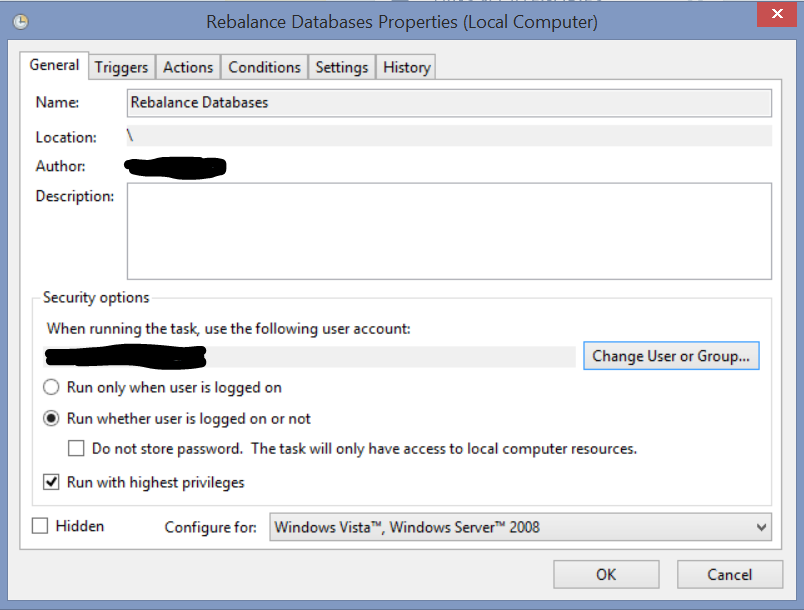
Complete the task creation and then go into the properties of the task. On the General page, configure the task to:

1. Run whether the user is logged on or not
2. Run with highest privileges
3. If need be, change the account running the task to a service account of some kind. That account must be a member of the Organisation Management group

Just like this:

TaskScheduler DAG Rebalance 2

Your Scheduled Task is not configured. You can test it out by manually running it. Hopefully this solves a headache for one or two of you out there!

Blocking Outlook App for iOS & Android

I just wanted to share this great article from EighTwOne on how to block the new Oulook app for iOS & Android. I don’t usually share other people’s posts but I thought this was particularly useful as there is quite a storm brewing in the proverbial teacup over this app. If you have concerns about the privacy and security of this app, use the commands listed in the linked article to create a device block or quarantine policy for the app.

Michel de Rooij's avatarEighTwOne (821)

imageYesterday, Microsoft announced the immediate availability the Outlook for iOS and Outlook for Android preview. These apps are the former app named Acompli, which was acquired by Microsoft in December, last year. It is unlikely that Microsoft will develop and support two similar apps, so one can assume the new Outlook app will replace the current OWA for iOS and OWA for Android (or just OWA for Devices) apps.

The app isn’t without a little controversy:

  • The app stores credentials in a cloud environment from Amazon Web Services for e-mail accounts that don’t support OAuth authorization.
  • The app makes use of a service sitting between the app and your mailbox. This service acts as a sort of proxy (hence it requires those credentials), fetching, (pre)processing and sending e-mail. In some way this is smart, as it makes the app less dependent on back-end peculiarities, using a uniform protocol to communicate…

View original post 375 more words

Remote Mailboxes in Exchange Hybrid configuration

I’ve been asked a few questions recently about Remote Mailboxes in Office 365 hybrid configurations. The Remote Mailbox exists on the On Premise Exchange server and is the link between the Office 365 mailbox and the On Prem Exchange Organisation. Without one of these for each Office 365 mailbox, you can’t effectively manage certain Office 365 mailbox properties, you can’t offboard it back to the On Prem Exchange Server, and most importantly, not having a Remote Mailbox breaks mail flow between users On Prem and users in Office 365.

Quite often, when administrators first start using Office 365 in Hybrid mode, they will create a new user simply by creating the AD account, synchronising it using DirSync/AADSync, and then licensing the user. This will give you a mailbox in Office 365, but will also cause the problems listed above. The correct way to provision new users in Office 365 is to create new Remote Mailboxes. If a Remote Mailbox isn’t present or has been accidentally deleted, you can create one and link it up to the Office 365 mailbox.

To do this:

From Exchange Management Shell (On Premise):

Enable-RemoteMailbox username –RemoteRoutingAddress alias@domain.mail.onmicrosoft.com

The RemoteRoutingAddress is always in the format of alias@domain.mail.onmicrosoft.com, for example:

Enable-RemoteMailbox joeb –RemoteRoutingAddress joeb@doubledit.mail.onmicrosoft.com

You then need to get the Mailbox GUID of the Office 365 mailbox. To do this, go into Office 365 PowerShell and run:

Get-Mailbox –Identity emailaddress | fl Identity,ExchangeGUID

Copy the Mailbox GUID into your clipboard and go back to the Exchange Management Shell (On Premise):

Set-RemoteMailbox username –ExchangeGUID 8e992097-24c1-432c-8a89-98e3c7a7d283

Anything in italics needs to be changed to a parameter relevant to your requirements. Once you’ve completed this, perform a delta/incremental sync and the two shall become one (so to speak!)

There is a KB article from Microsoft on a similar issue (trying to Offboard a mailbox where the Remote Mailbox GUID is not the same as the 365 GUID) here: http://support.microsoft.com/kb/2956029/en-us

Thanks for reading 🙂

Office 365 – MFA support for the Windows Office 2013 suite on it’s way!

Great news for users of Office 365 Multi Factor Authentication! Office 365 MFA is soon to be fully supported in the Office 2013 Windows client applications.

At the moment, MFA only supports web based applications like OWA. If you have MFA enabled and want to use rich client applications such as Outlook 2013, you have to use an App Password. This is a randomly generated 16 digit persistent passcode which is assigned to an individual application, such as Word 2013.This provides a higher level of security than a user specified password however is not as secure as true MFA.

This new functionality will pave the way for customers making use of the integrated Office 365 MFA authentication. Especially considering that it is totally free to enable!

Currently the update is only available to those people taking part in a Private Preview, however interested parties can keep their eyes on the Office 365 roadmap at http://roadmap.office.com to find out about release dates for this update.

Office 365 – Outlook Profiles in a Cutover Migration

One of the drawbacks of performing a cutover migration from an On Premise Exchange environment to Office 365 is that Outlook profiles must be recreated to connect to the Office 365 servers. If done manually on every single workstation in your company, this could be a very time consuming process as you would have to create a new profile, set it as the default and configure it for the user.

One way of automating some of this process is to use Group Policy to run a script to create a new, blank Outlook profile and set it as the default profile. The user will then be presented with the first time profile setup screen when opening Outlook and should be able to use Autodiscover to automagically find their new Office 365 profile settings:

Outlook New Profile SetupOutlook Configure Profile

Outlook Profile Complete

To create the batch file required to do this, copy and paste the following text into a file and save it as a .bat file:

For Office 2010:

reg add "HKCU\Software\Microsoft\Windows NT\CurrentVersion\Windows Messaging Subsystem\Profiles\O365"
reg add "HKCU\Software\Microsoft\Windows NT\CurrentVersion\Windows Messaging Subsystem\Profiles" /v DefaultProfile /t REG_SZ /d "O365" /F
reg add "HKCU\Software\Microsoft\Exchange\Client\Options" /v PickLogonProfile /t REG_DWORD /d "0" /f

For Office 2013:

reg add HKCU\Software\Microsoft\Office\15.0\Outlook\Profiles\O365
reg add "HKCU\Software\Microsoft\Office\15.0\Outlook" /v DefaultProfile /t REG_SZ /d "O365" /F

The script will create a new profile called O365 and set it as the default profile. Create a new Group Policy object to run the .bat file in Group Policy Preferences. You can safely leave the GPO in place for a few days to allow for people who may not be in the office for your go live day as it will not overwrite or remove existing profiles.

When this process in used in conjunction with the Group Policy for controlling Autodiscover (http://doubledit.co.uk/2014/10/21/controlling-autodiscovery-using-group-policy/) you can have a 80% automated cutover migration which should be smooth sailing for yourself and your users!

Thanks to my colleague Kevin for sharing his experiences and allowing me to blog about this.