ADFS 3.0 service will not start – error 1297

This issue is fairly well documented, but I wanted to put it here for my own purposes:

When installing a new ADFS farm, you may find that if you reboot the ADFS server, or restart the ADFS service, it will not restart and fails with a 1297 error code. In the Event Viewer you will see an error stating that;

A privilege that the service requires to function properly does not exist in the service account configuration

This error screams of an issue with the configuration of the service account…and that’s exactly what it is. On the affected ADFS server, open the Local Security Policy console (secpol.msc) and expand the following container:

Security Settings\Local Policies\User Rights Assignment

Go into the properties of the Generate Security Audits section and add the ADFS service account into here. If the option to add an account is grayed out, then that means that a Group Policy is controlling this access list, and you will need to find and modify the appropriate GP to add the ADFS service account into the group (usually the Default Domain Policy). While you are here, ensure that the ADFS service account has ‘Log on as a Service’ privileges.

Once this is done you should be able to start the ADFS service (although if you edited Group Policy then run gpudpdate first). Hopefully this helps you before you get to the point where you make the ADFS service account a Domain Admin! Remember, this account only needs Domain User privileges and should not be put into god mode!

Hybrid Configuration Wizard and Multiple Domains – Get-FederationInformation cmdlet had thrown an exception

When running the Exchange Hybrid Wizard for multiple domains, you may find it fails and shows you the error below:

Execution of the Get-FederationInformation cmdlet had thrown an exception. This may indicate invalid parameters in your Hybrid Configuration settings.

Federation information could not be received from the external organization.

In addition to this, if you check the Update-HybridConfiguration log file in the Exchange Logging directory, you will find that the failure occurs just after the command Get-FederationInformation is run on one of your domains.

The first test you can run is to login to Microsoft Online PowerShell and try running:

Get-FederationInformation -DomainName domain.com

If this comes back with an error, then you likely have an issue with Autodiscover. It may be that autodiscover is not configured for all your domains, which is quite a common occurrence. There are 2 traditional ways to get around this:

  1. Configure multiple SRV DNS records to point Autodiscover at your primary Autodiscover service
  2. Add all your autodiscover domains to your SAN certificate and configure A records to point autodiscover to the public facing IP of your Exchange server/s

As of Exchange 2010 SP3 UR6 and Exchange 2012 SP1 however, there is a much cleaner way of doing this.

  1. Make sure Autodiscover is configured and working on your Primary SMTP domain (use https://testconnectivity.microsoft.com/ to verify functionality)
  2. Run the HCW (Hybrid Configuration Wizard) for just your Primary domain. This should complete without issues
  3. Go into the Exchange Management Shell on your On Premise Exchange environment and run:

Set-HybridConfiguration -Domains domainb.com,domainc.com,domain.com,autod:domaina.com

Where domaina.com is your Primary SMTP domain. This sets your autodiscover domain for all domains to domaina.com.

  1. Re-run the HCW. You should now see all domains populated and the HCW should complete successfully.

PST Lockdown

PST files are very much of their time, but just like public folders and pre-windows 2000 logon names, they are still used in anger almost everywhere I go. They are usually scattered around the network and/or on users C:\ drives, causing mayhem and corruption wherever they go.

Admittedly, there were good reasons to use them back in the days of Exchange 2003, when disks were expensive and Mailbox Stores were limited to 70GB. These days it’s a much better idea to use a 3rd party archiving solution or integrate them back into the original mailbox. The problem here is that users love to hang on to what they know, even if they loathe it themselves. So how to stop those pesky users from messing around with PST files? Enter the magical wizardry of Group Policy, back to save the day as always.

The first thing you will need is to have the correct Administrative templates loaded for either Office 2010 or Office 2013. I’m going to pretend that nobody is running Office 2007 as it is now 8 years old and a bit old hat.

Go and edit your existing Office group policy or create a new one, and configure the following settings:

Microsoft Outlook 2010/2013 > Outlook Options > Other > AutoArchive > AutoArchive Settings – Disabled

Microsoft Outlook 2010/2013 > Outlook Options > Other > AutoArchive > Disable File|Archive – Enabled

Microsoft Outlook 2010/2013 > Miscellaneous > PST Settings > Prevent users from adding PSTs to Outlook profiles and/or prevent using Sharing-Exclusive PSTs – No PSTs can be added

Microsoft Outlook 2010/2013 > Miscellaneous > PST Settings > Prevent users from adding new content to existing PST files – Enabled

If you create the above configuration in Group Policy and apply it to your users, you will find that users a) will not be able to access the ‘Open Outlook Data File’ option in Outlook, b) Currently attached PST files will remain connected but data cannot be added to them and c) Users will not be able to use the Import/Export functions or AutoArchive functions with regards to PST files.

Once you’ve made these changes, you can move onto the process of hunting down and getting rid of those dreaded PST files without worrying about more file cropping up around you!

Good luck and god speed.

Set-AzureNetworkSecurityGrouptoSubnet – The virtual network name is not valid.

Another catchy title which I’m sure you’ll be saying to yourself all day.

I came across a problem recently whilst attempting to attach an Azure Network Security Group to a subnet within a virtual network. The purpose of this NSG was in reference to an ADFS configuration in Azure. The NSG was to be used to wrap around our ‘LAN’ subnet in Azure and protect it from the ADFS Proxy servers and the internet by locking down inbound traffic to only allowed ports.

I created my NSG by using:

New-AzureNetworkSecurityGroup -Name "LAN_NSG" -Location "West Europe"

And then attempted to map it to my LAN subnet by using:

Get-AzureNetworkSecurityGroup -Name "LAN_NSG" | Set-AzureNetworkSecurityGroupToSubnet -VirtualNetworkName 192.168.x.x -SubnetName ‘LAN’

However I got a wall of red, with the descriptive error message of:

The virtual network name 192.168.x.x is not valid

NSG - The Virtual Network name is not valid

I then tried specifying the virtual network name in a combination of formats, and also by using a variable:

'192.168.x.x'
"192.168.x.x"
$vnetname=192.168.x.x

And so on and so forth, all with the same result. I could however, run:

Get-AzureVNetSite -VNetName 192.168.x.x

Which returned a valid result, confirming my thinking that the VNet name was valid and correct. Eventually I logged a call with Azure Support to try and find out what was going on. I received a prompt response, and was told by the engineer dealing with the call that the problem could be reproduced, and was consistent when trying to apply NSG to a VNet name that starts with a number.

At the moment I’m waiting to hear back to see whether this is a known issue and if there is a prettier workaround other than creating a new VNet and migrating my VMs over to it. Another workaround is to apply the NSG to the VMs themselves, which may be the route that we travel until this issue is solved.

Restrict access to OneDrive for Business

Edit: A new admin centre for OneDrive has been launched as of December 2016, and allows for much more granular control over what can be synchronised, and where from. Check it out at admin.onedrive.com

A question which I get asked quite frequently is whether OneDrive for Business can be blocked, locked down, or restricted. Whatever your reasons for doing this, there are some things you can do to restrict access.

As a little bit of background information, OneDrive for Business is not the same as your personal OneDrive, and is essentially your own private SharePoint library. If you have no plans to use SharePoint Online, then the easiest way to block access to OneDrive for Business is to simply remove the SharePoint Online license from the users in question. This is done in the sub menu of the licensing options for a user and can be applied on a per user basis.

SharePoint License

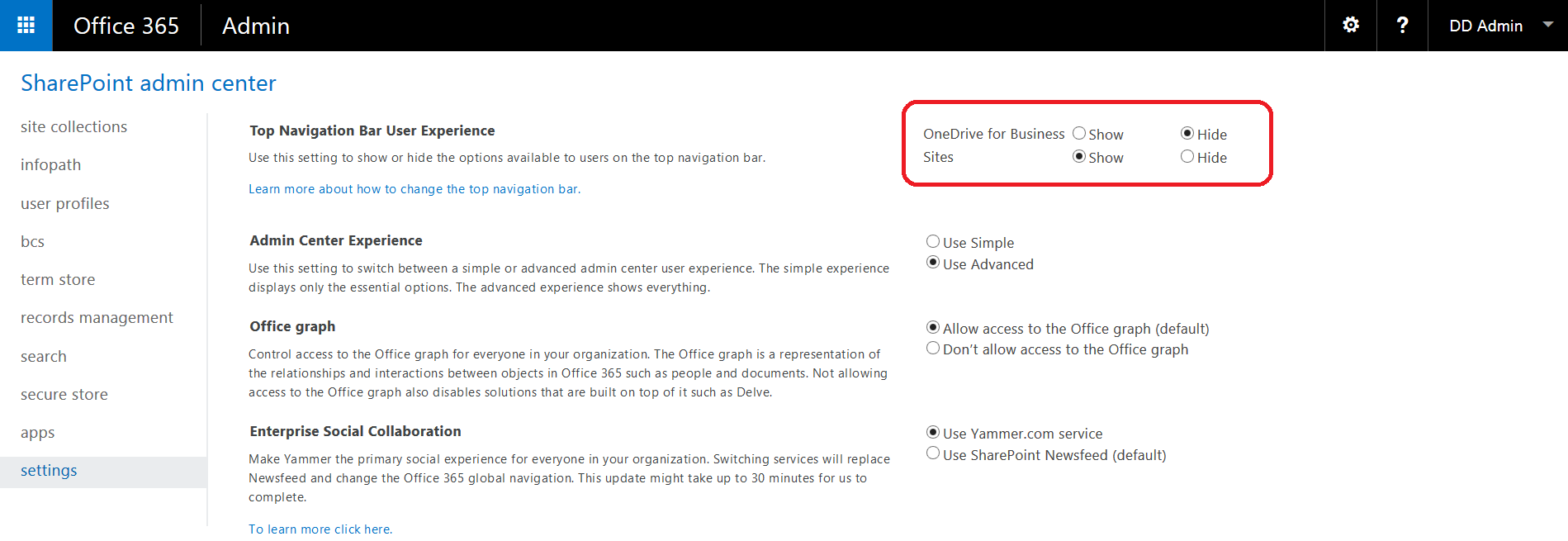
Another thing you can do is to hide the OneDrive button from the portal. This is done under the SharePoint Admin section of the Office 365 portal, under the Settings Tab. This setting applies to all users.

Hide OneDrive for Business

With this option selected, OneDrive will not show up in the Portal menu, along with the Office Web Apps.

Hide OneDrive for Business

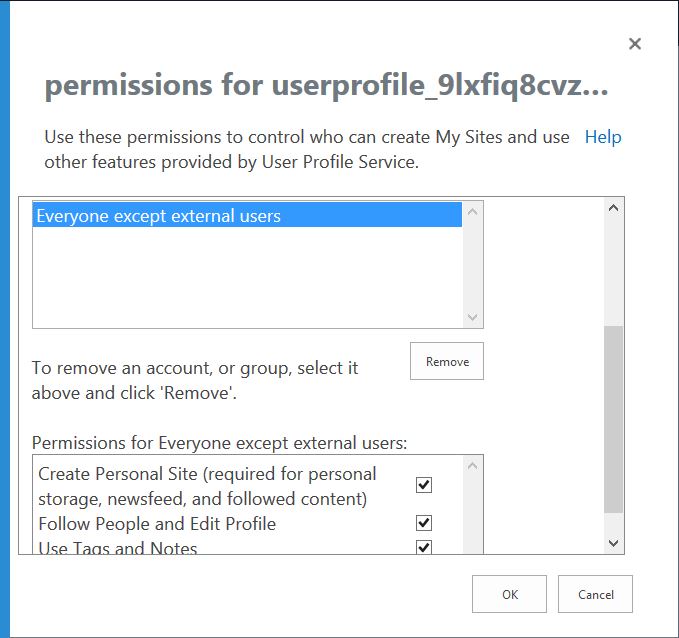
We can also stop users from being able to create a personal site at all, by going into the User Profiles area of the SharePoint admin center. Go into Manage User Permissions and remove ‘Everyone except external users’. This will stop any users from being able to create their own OneDrive for Business sites. If you like, you can then add users or groups into this list who you would like to be able to create a OneDrive for Business site.

Personal Site Lockdown

This doesn’t stop any users who have already created their OneDrive for Business sites from accessing it if they know the direct URL or have added it as a favourite into their Internet Browser. I won’t be covering that scenario here, however if this is something you would like more information on, let me know in the comments and I will put a post together!

Microsoft inTune – Mobile Device Management Authority set to Office 365

Well that is a mouthful of a title! Microsoft have now fully rolled out their Mobile Device Management features in Office 365, and I decided to kick the tires and find out more about what it could do. This involves enabling the MDM service from within Office 365.

A couple of weeks after this, I needed to do some testing with Microsoft inTune, the big brother of Office 365 MDM. I signed up for the 30 day trial, and went through the process of ticking off the pre-requisites of the intial deployment. One of these steps is to set the Mobile Device Management Authority. This settings defines whether you will integrate your inTune subscription with System Center Configuration Manager or not. This is a decision which is very difficult to reverse once done, but for my purposes I wanted to configure inTune itself as the Mobile Device Management Authority, and not integrate with SCCM.

However I was not able to do this as when I visited Admin>Mobile Device Management, I was told that my MDM Authority was set to Office 365. There was also no option to change this. I ended up having to log a call with inTune support, who responded very quickly and reset the MDM Authority so that I could set it. It took around 5 days for the reset to be processed. Once it is complete you can set the MDM Authority to inTune or SCCM!

MDM Authority

I can see this catching out a lot of customers who are using the built-in Office 365 MDM and decide to upgrade to use inTune. Just keep in mind that you will need to reset your MDM Authority by logging a call with inTune support, and this will take 5 working days. It’s also worth noting that before resetting your MDM Authority, you need to retire all current mobile devices from Office 365 MDM. This is best done by performing a selective wipe from the Mobile Devices tab of the Office 365 admin center.

I hope this helps some of you out there who are looking to move from the built-in Office 365 MDM to Microsoft inTune.

Exchange Server 2016 Announced at Ignite!

Exchange Server 2016

Great news for all you Exchange consultants and architects out there. A whole new version of Exchange is on it’s way for us to learn about and deploy!

The Ignite 2015 conference played host this year to the announcement of Exchange 2016 as the on premise successor to Exchange 2013. This new version will be released in the latter half of 2015 and has a few notable changes / features added:

  • The Client Access role has been removed completely. In Exchange 2013 the Client Access role was simply an intelligent proxy service and had no real involvement in traffic other than proxying it to the correct location. Now clients will connect to client access services (running within the Mailbox role) and those requests are routed to the Mailbox server holding the active database for that mailbox.
  •  Search has received various improvements, primarily to performance, which was a bugbear in Exchange 2013 due to the slowness of search in Online mode and OWA in particular.
  • Document Collaboration is Microsofts headline feature. This will leverage Office Web Apps and SharePoint servers, and potentially Microsoft Online Services to allow for document versioning and collaboration within the attachment mechanism in Outlook/OWA. In essence, a user can attach an item to an email and not have the issue of dealing with manually merging multiple versions of the same document. This versioning will be handled automatically.
  • Outlook Connectivity will now be handled by MAPI/HTTP by default. This connectivity protocol reduces bandwidth and latency requirements and provides a more stable Outlook experience.
  • Coexistence with Exchange 2013 is going to be a hoot. When deploying Exchange 2016 in your environment, you will not need to move the namespace in order to migrate mailboxes as there is backwards compatibility with the Exchange 2013 namespace model built into Exchange 2016. This means that it will be simple to introduce Exchange 2016 into your environment and start using it in anger. You will still need to migrate this namespace eventually but when you do this is up to you!
  • Hybrid functionality will, of course, be improved, allowing for customers to more easily decide which parts of the component stack they want to remain On Premise and/or move to the Cloud.

Armed with the information we have so far been furnished with, I think that we can all look forward to a more simplified and powerful Exchange On Premise experience. Microsoft must have learned a lot from running the largest Exchange Organisation in the world in Office 365, and I hope that all the On Premise environments around the world will benefit from their lessons learnt.

ExpressRoute for Office 365

It’s Ignite week this week, and although I’m disappointed that I’m not able to attend, I will be doing my best to keep abreast of all the Office 365, Exchange and Azure news!

The best piece of news so far, particularly for larger Office 365 customers, is the announcement of the ExpressRoute Service Providers for Office 365. This technology provides a private, managed connection to Office 365, giving you the equivalent of a direct MPLS connection into Office 365 datacentres. Multiple links can be used to provide redundancy, however each ExpressRoute circuit provides 2 active physical connections for built in redundancy.

This service will be available starting this Summer, and initially in the UK BT will be the only provider able to offer ExpressRoute for Office 365, however this will be expanded in the months following General Availability.

The full provider list for the UK at the time of writing consists of:

BT / Colt / Level3 / Orange / Tata / Verizon

More information is available on the Office Blog: http://blogs.office.com/2015/05/04/announcing-first-network-partners-to-offer-expressroute-for-office-365/