Cloud Security 101

With Microsoft, Amazon and Google currently enticing businesses and consumers into cloud services with promises of resiliency, scalability and simplified administration, many companies are quite rightly moving services and data into the cloud in some way or other.

Before making such a leap however, questions must be asked about data security and compliance. Cloud services must be scrutinised in order to ensure that data geo location and security practices meet compliance requirements for the customer and their clients. After all, you are trusting these providers with your essential business data, and in some cases your intellectual property.

Edward Snowdens leaks regarding NSA/GHCQ snooping, along with the leakage of personally identifiable information from services at Sony, eBay and the like has left many people suspicious and wary of who exactly can get to your information. This blog post is here to show you a sample of the security features used to protect your data in Office 365 and Azure, and some of the ways your data is protected in transit.

Office 365 Security

The Office 365 service provides many layers of security. Microsoft want to be seen as a safe pair of hands to help drive adoption and for this reason they have the interests of security and privacy at the very top of their lists of priorities.

The data in all Office 365 services is encrypted at rest using BitLocker and in addition to this, as of November 2014, all Office 365 data is encrypted again on a per file basis. This means that each individual file is encrypted using different keys, which are stored in an alternate location to the master key.

All Administrative actions taken on Office 365, either by the tenant administrators or the service administrators, are audited and fully transparent. As an Office 365 customer, you can view and export a list of Powershell commands run by Microsoft Support or your own administrators. Microsoft support technicians are given administrative access when required based on the least privilege model, and this access is time limited by default.

Data theft from inside or outside of the service is a serious concern to Microsoft and the Office 365 team work on the assumption that a compromise has already been made. A Red team exists whose sole job is to attempt to compromise the systems protecting customer data. They do this by attempting to gain access to test data, and a Blue team works in parallel to identify the Red team and counteract this threat. This is the equivalent of having your IT systems constantly penetration tested, which is more than most companies can say for their own IT systems!

Compliance in Office 365 is a hot topic and is critical to getting governmental departments, and health and financial companies on board. Office 365 are compliant with many of the standards required in these sectors, such as ISO 27001, FISMA, and HIPAA.

All of these security features help to make Office 365 a platform which is likely to be far more secure and compliant than your own On Premise environment. Microsofts transparency on security and privacy are also far superior to any of their rivals, giving you the peace of mind needed to begin your move to the cloud.

Much more information can be found at the Office 365 Trust Center – http://trust.office365.com.

Azure & Microsoft Datacentre Security

The Microsoft Azure IaaS environment should be considered by customers as an extension of their Datacentre. Microsoft are staunch supporters of the concept that the data you place in cloud services is your data, not theirs. Encryption is in place across all servers, and nobody with physical access in the Datacentre has knowledge of which customer’s data is in which rack or server.

Direct access to the Azure Hypervisors is unavailable to customers and network isolation is used to separate traffic between tenants. There are also various methods customers can use to increase the privacy of their Azure traffic, such as using Azure Private Virtual Networks and Azure ExpressRoute, which creates a direct connection to Azure, keeping your inter-site traffic off the Internet.

The physical environment is highly secured and access is extremely limited by using separation of duties and roles to make sure that no one person has too much knowledge of the systems. Failure to abide by the Microsoft Datacentre security policies means instant dismissal for the employee. In addition to this, personally identifiable information is stored separately to non-personally identifiable information.

All access to customer data is blocked by default, using a zero privileges policy. If this is allowed, it is time limited and fully audited. In addition to this, staff members who receive this access to customer data will not have physical datacentre access. These same physical and data based access controls are also in place for the Office 365 and all other Microsoft Online services.

From a compliance point of view, you can rest assured that Azure complies with the majority of major standards across the world. These compliance standards are not easy to achieve by any standards, but Microsoft remain committed to keeping their compliance up to date and as broad as possible. Some of the specific compliance standards which are verified for the Azure Service are:

  • ISO/IEC 27001
  • SOC 1 and SOC 2 SSAE 16/ISAE 3402
  • UK G-Cloud
  • HIPAA BAA
  • EU Model Clauses
  • Singapore MCTS
  • FedRAMP
  • PCI DSS
  • Australia IRAP

Much more information can be found at the Azure Trust Center – http://azure.microsoft.com/en-us/support/trust-center/.

Convincing your boss, management boards and other business trustees that a move to the cloud is a secure one is a tough job, but Microsofts commitment to privacy, security and transparency makes it much easier to put together a viable business case which can help you reap the rewards of scalability, resiliency and compliance.

Exchange Online – Lock down mail flow

By default, Office 365/Exchange Online allows mail to be received from any external source. This is done using a ‘hidden’ default inbound connector. The properties of this connector cannot be viewed or modified, even in Exchange Online Powershell.

This is all well and good and allows you to be able to send/receive mail out of the box in Office 365, however is does cause a problem if you are using a 3rd party mail solution such as Mimecast or Websense. If you do happen to be using a 3rd party mail filter and you leave the default inbound connector alone, somebody could bypass your filter by sending you mail directly to your Office 365 hostname. From a best practices and security point of view, this is most definitely a bad thing.

To combat this and limit Office 365 from receiving mail only from your mail filter, go into your Exchange Admin centre and create a new Inbound Connector under Mail Flow>Connectors.

New Inbound Connector

The settings of your Inbound Connector should be as follows:

Type: Partner
Connection Security: Force TLS (only if your mail filter supports forced TLS. This will add an extra layer of security. Otherwise, use Opportunistic TLS)
Sender Domains: *
Sender IP Addresses: 1.2.3.4 (enter your mail filters IP addresses here)

This example states that Office 365 will only receive mail from the IP address 1.2.3.4 and nothing else. The * wildcard under Sender Domains applies the connector to all mail. If I were to use Exchange Online Powershell to perform the same task, my command would look like this:

New-InboundConnector -Name Lockdown -ConnectorType Partner -RequireTls $true -SenderIPAddresses 1.2.3.4 -SenderDomains *

This simple configuration change will ensure that nobody can bypass your mail filter and spam you with invitations to enlarge something or other 🙂

Office 365 First Release Program

First of all, Happy New Year and welcome to 2015!

It’s been a long time coming, but I finally signed up for my very own Office 365 account today for my own production and testing environment. 2015 will hopefully see me develop my SharePoint Online skill set, and I’m also keen to have a test bed for problems which clients come to me with, and also just to satisfy my own curiosity when I need to!

The Office 365 teams are making a lot of UI changes at the moment, the majority of which I like a lot, but I need to be able to keep on top of the changes to avoid getting egg on my face in front of customers 🙂

For this reason, one of the important things for me to enable straightaway was the First Release program. This program is designed for the people who want to be on the bleeding edge, and gives the tenant updates as soon as they become available, sometimes as soon as one week after the announcement. This will allow me to test new functionality and become fully versed with it before my customers even receive it!

If you are one of those that live on the bleeding edge, log into your Office 365 Admin portal, and go to Service Settings>Updates and enable!

Office 365 First Release

Resource Mailboxes show availability as Busy

When you create a Resource Mailbox in Exchange 2010, 2013 or Office 365, the default permissions applied to the calendar for the Default user group is ‘AvailabilityOnly’. This means that you can see appointments in the calendar, however you cannot see the subject, attendees, or any further details. When this is being used for a piece of equipment or a meeting room, this configuration appears to be counterproductive.

After all, if you desperately need that piece of equipment (the corporate skipping rope for instance), how do you know who has booked it so you can go and argue with them about who should be able to use it that lunchtime? If you are on the board of a company, how do you know which of your minions have mistakenly booked the meeting room during your monthly board meetings so you can go and give them a verbal warning?

Almost all of my customers ask me these important questions, and the answer is simple. You run the following Powershell command against the Resource Mailbox and set the Default access rights to the more informative ‘Reviewer’ permission. Users can now see the subject, the attendees and the details of the booking.

Set-MailboxFolderPermission alias:\calendar -User Default -AccessRights Reviewer

Powershell. Helping you achieve the unachievable.

Exchange 2013 CU7 and more!

Today Microsoft have released a new slew of updates for On Premise Exchange environments!

There have been various hotfixes and scripts released to fix a multitude of sins in Exchange 2013 CU6, and Microsoft have rolled these hotfixes and more into their latest CU7 release. This update does require a Schema Update, so please run setup /prepareschema first. See https://support.microsoft.com/kb/2986485 for more information. Additionally there are some UM Language Packs for Exchange 2013 CU7 available.

In other news, the Exchange 2010 CU8 update has been recalled at the time of writing and is not available for download. This is because deployment of said update can lead to Outlook being unable to connect to Exchange :-/ If you have already installed, it is recommended that you rollback the update.

Lastly is the Exchange 2007 SP3 UR15 for all those retro Exchange nerds still running Exchange 2007. See KB here for information http://support2.microsoft.com/?kbid=2996150.

Check out http://blogs.technet.com/b/exchange/archive/2014/12/09/exchange-releases-december-2014.aspx for the full rundown!

Powershell – Automatically Update E-mail Address based on Recipient Policy

During a recent large Office 365 Hybrid Deployment, I came across the issue of many users (400+) having the ‘Automatically Update E-mail Address based on Recipient Policy’ option unticked. This meant that the users in question did not have the correct routing address of username@domain.mail.onmicrosoft.com specified. When attempting to migrate the mailboxes of said user accounts, they failed with the following error:

The target mailbox doesn't have an SMTP proxy matching 'domain.mail.onmicrosoft.com'

This address is required for mail routing between On Premise users and Office 365 users, therefore without if the mailbox move cannot take place. This address is added to all Email Address Policies which contain the hybrid domains during the Hybrid Configuration, in order to put the correct routing in place.

The company in question only had one email address per user in the format of firstname.lastname@domain.com so there was no reason not to have this option enabled. The only exception were a few users who had a different SMTP suffix (domain2.com), so these users needed to be left alone. The first thing I had to do was identify which users had the email address policy disabled. To do this I ran the following command:

get-mailbox | Where {$_.EmailAddressPolicyEnabled -eq $false} > C:\Temp\emailpolicy.txt

After realising there were 400+ mailboxes to enable this on, it became obvious that this was a problem which only Powershell could solve. Before I started, I first used the command listed on a previous blog http://doubledit.co.uk/2014/12/02/how-to-export-a-list-of-all-primary-smtp-addresses-and-aliases/ to export a list of all Primary SMTP addresses as a reference. I then ran the following command to find all users with a particular SMTP suffix and enable the ‘Automatically Update E-mail Address based on Recipient Policy’ option:

Get-mailbox | Where {$_.EmailAddresses -like ‘*@domain.com’} | Set-mailbox -EmailAddressPolicyEnabled $true

If you just wanted to apply the policy to all users, you would use the following command:

Get-mailbox | Set-mailbox -EmailAddressPolicyEnabled $true

Change Office 365 Start Page

When a user logs into the Office 365 portal, they will be presented with the below screen. But what if they want to be faced with their Newsfeed when logging in?

Office 365 Start Page

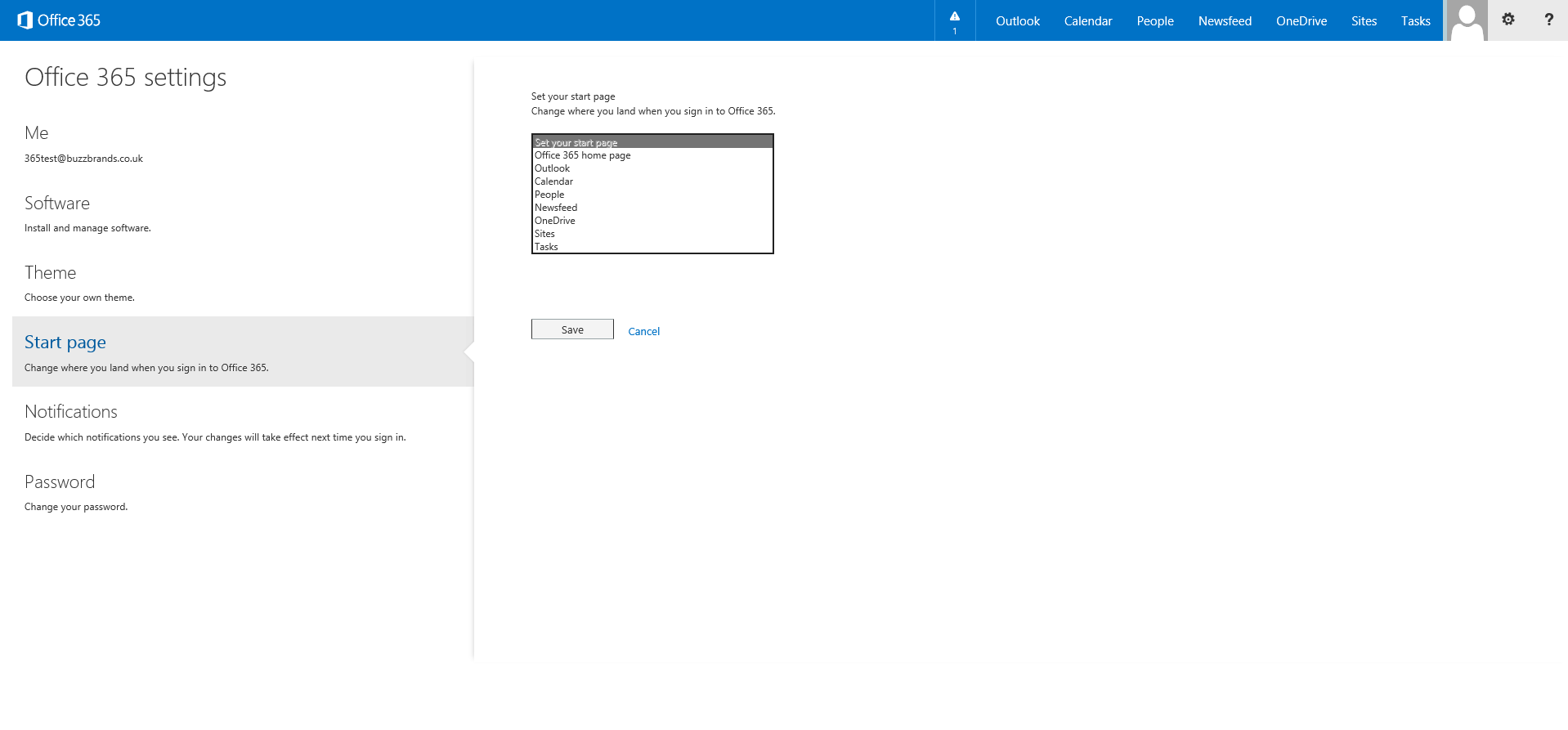
In that case, the user simply goes to their Office 365 Settings page:

Office 365 Settings

And then to the Start Page option. The user can then decide what page they would like the portal to default to when signing in:

Office 365 Start Page Customisation

You can also provide users with separate URLs for different services. For example, the OWA URL would be:

https://outlook.com/contoso.com

This could be configured as a Favourite in the users internet browser. Other options include SharePoint Online URLs such as:

Newsfeed: https://tenantname-my.sharepoint.com

OneDrive: https://tenantname-my.sharepoint.com/personal/username_contoso_com

Team Site: https://tenantname.sharepoint.com

N.B. Replace tenantname with your own Office 365 tenant name.

Synchronised User not Provisioned in Lync Online

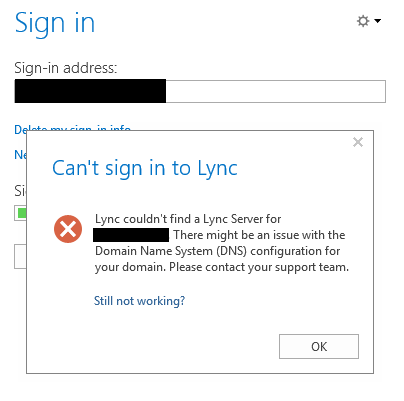
Today I came across an issue with Lync Online during an implementation of Office 365. We synchronised the user accounts and password hashes using AADSync and applied E3 licenses to a few test users in the IT team. Their testing was successful with the exception of Lync Online, which they could not login to with their synchronised @contoso.com account. The error returned to them was as follows:

Lync couldn't find a Lync Server for contoso.com. There might be an issue with the Domain Name System (DNS) configuration for your domain. Please contact your support team.

Lync Online DNS Error

I tested using my own testuser@contoso.com account and could successfully login to Lync Online internally and externally, which showed me that the DNS records were created correctly. After looking at the firewall logs it appeared that the DNS name lyncdiscoverinternal.contoso.com was being unsuccessfully looked up. This DNS record is used for On Premise Lync installations. I also noted that in the Office 365 Lync Admin centre, the user had not been provisioned.

After quizzing the customer, we discovered that a proof of concept Lync server had been installed a while back and enabled for a few test users in the IT department. This server was not properly decommissioned so AD attributes still existed for these test users. In order to get Lync Online to provision the accounts we had to go into ADSIEdit and clear the following attributes so that they were empty:

msRTCSIP-DeploymentLocator
msRTCSIP-FederationEnabled
msRTCSIP-InternetAccessEnabled
msRTCSIP-Line
msRTCSIP-OptionFlags
msRTCSIP-PrimaryHomeServer
msRTCSIP-PrimaryUserAddress
msRTCSIP-UserEnabled
msRTCSIP-UserPolicies

We then ran a delta sync and hey presto, our user accounts were provisioned in Lync Online and the users could successfully login. The error message we initially given was fairly misleading, but this just shows you how important proper decommissioning is when it comes to essential services like Lync and Exchange.

Modify UPN to match Primary SMTP address


You may have read a previous blog I wrote in which I explained a new feature in AADSync which allows you to use the Primary SMTP address as a username in Office 365, therefore allowing you to leave the UPN value unchanged. However this method is not without it’s problems, and during a recent Hybrid Deployment of Office 365 it was decided to instead change the UPN prefix and suffix to match the users Primary SMTP address.

The risk to be aware of here is that if one of your LOB applications or a Service Account is using the UPN for authentication, you will break authentication for this app/service.The customer in question was confident that this wasn’t the case, but just to be sure we changed the UPN for a few test users prior to rolling this change out.

To clarify, the users Pre-Windows 2000 and UPN logon prefixes were firstinitialsurname, for example, ECoates, whereas the Primary SMTP address was firstname.lastname@contoso.com, for example, Emily.coates@contoso.com. We wanted users to be able to login to Office 365 using their ’email address’, so we decided to change all UPNs to match. There are 2 commands that could be used to accomplish this. The end result of the commands was that the users UPN would be changed from ddixon@contoso.local to Emily.coates@contoso.com. We also only wanted to change to be made to user accounts with a Primary SMTP address specified.

Pre-Requisites

Either of the two below commands can be run to achieve this goal. However, before either of these commands are run, it is important to make sure that the UPN suffix you wish to be populated exists in AD Domains and Trusts. To do this, open AD Domains & Trusts, and right click on Properties.

ADDT

Then enter the required domain, such as contoso.com and click Add and Apply. This makes the alternate UPN suffix available for use in the domain.

Alternate UPN Suffix

The below commands need to be run from an elevated Exchange Management Shell prompt. It is up to you which to run.

Command 1

This command finds all users who have a Primary SMTP address and then sets the UPN to be identical to this. It will ignore any user who does not have a Primary SMTP Address.

$users = Get-User | Where {-Not [string]::IsNullOrEmpty($_.WindowsEmailAddress) } 
$users | ForEach {Set-User –Identity $_.Guid.ToString() –UserPrincipalName $_.WindowsEmailAddress.ToString()}

I found this command to be a little hit or miss, but this may be due to the size of the user base I was working with.

Command 2

This command finds all users who have the specified UPN suffix (such as a non-routable suffix like contoso.local) and changes their UPN to match their Primary SMTP address. If a user has no Primary SMTP address, it will not change the properties of that user.

$users = Get-User –Filter {(UserPrincipalName –like '*@contoso.local')} 
$users | ForEach {Set-User –Identity $_.Guid.ToString() –UserPrincipalName $_.WindowsEmailAddress.ToString()}

My personal preference is to use Command 2 as I had the most success with it, however I would love to hear your feedback on which one worked best for you!

Once you have run the command you can then use the following command to discover if any users were not successfully modified:

Get-User –Filter {(UserPrincipalName –like '*@contoso.local')}

Edit

I have also used the following command after having some problems with command 2 on Exchange 2013 (errors regarding the filter expression):

$mbxs = Get-Mailbox | Where {$_.UserPrincipalName -like '@contoso.local'}
$mbxs | ForEach {Set-User –Identity $_.Guid.ToString() –UserPrincipalName $_.WindowsEmailAddress.ToString()}


How to export a list of all Primary SMTP addresses and aliases

I was about to upgrade an Email Address Policy from Exchange 2003 version to support the modern version of Email Address Policies. Due to problems I have had in the past with these policies, I wanted to export a list of all Primary SMTP addresses and any other email aliases present for each user, and I wanted it in an easy to read CSV format. This is the command I ended up using, which is a slightly modified version of the command provided by the Enterprise IT blog http://enterpriseit.co/microsoft-exchange/export-list-of-all-exchange-email-addresses-and-aliases/

Get-Mailbox -ResultSize Unlimited |Select-Object DisplayName,PrimarySmtpAddress, @{Name=“EmailAddresses”;Expression={$_.EmailAddresses |Where-Object {$_.PrefixString -ceq “smtp”} | ForEach-Object {$_.SmtpAddress}}} | Export-CSV c:\exportsmtp.csv -NoTypeInformation

This can prove useful to do at the start of an Exchange deployment, ensuring you have a copy of the email addresses in use at the start of the project. It can also be useful for auditing purposes. This script will work in Exchange 2007, 2010 or 2013.